How can we help?
Charts, Reports & LifePath
With ForeBranch Pro, every person page gains three ways to explore a life and a family: interactive Charts, genealogy Reports, and the LifePath timeline.
All three appear as tabs on the person page once ForeBranch Pro is active and licensed.
Charts (Pro)
Charts draw the person’s family as an interactive diagram.
Chart types
- Horizontal – a horizontal pedigree, reading left to right.
- Descendant – the person’s children, grandchildren, and onward.
- Ancestor – the person’s parents, grandparents, and onward.
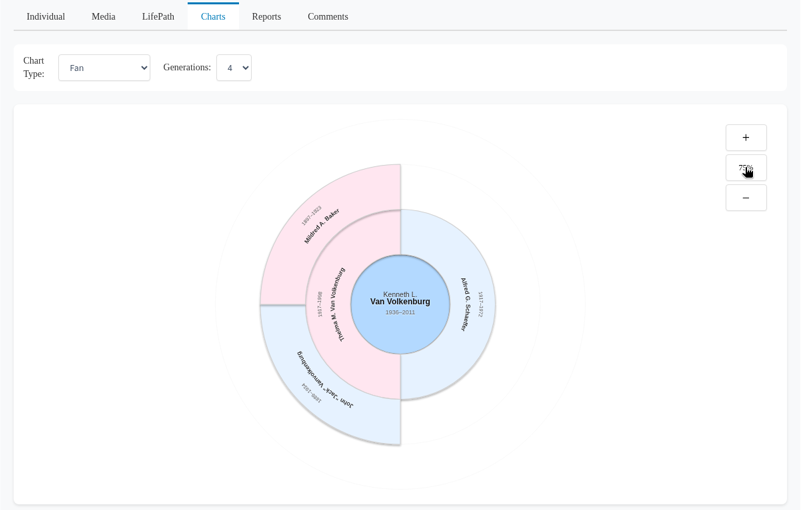
- Fan – ancestors arranged in a fan around the person.
Make a chart
- Open a person page and click the Charts tab.
- Choose a Chart Type.
- Choose how many Generations to show (2 to 6).
- Use + and − to zoom, and 100% to reset.
- Click any person in the chart to visit them. Each box shows the name and years.
Reports (Pro)
Reports present the family as structured text, in formats genealogists know well.
Report types
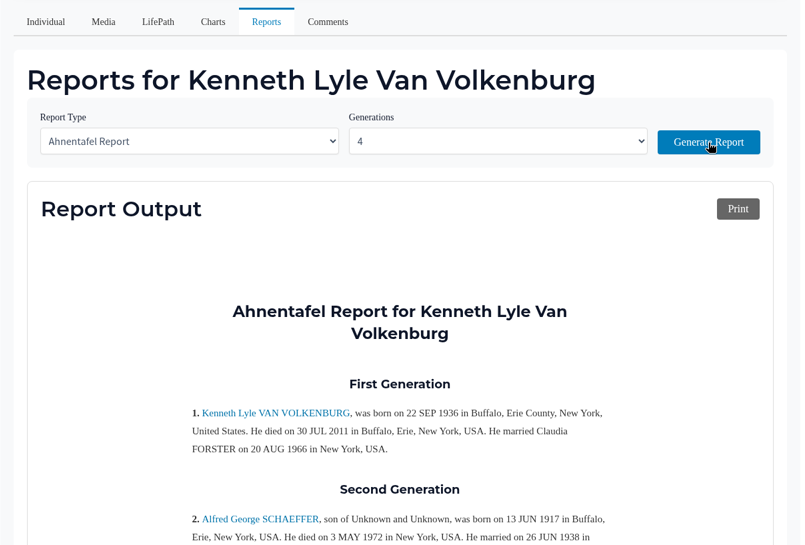
- Ahnentafel Report – a numbered list of the person’s ancestors, generation by generation.
- Descendant Report – the person’s descendants, generation by generation.
- Family Group Sheet – a couple and their children on one sheet.
Create a report
- Open a person page and click the Reports tab.
- Choose a Report Type.
- Choose the number of Generations (1 to 10; the default is 4).
- Click Generate Report.
LifePath (Pro)
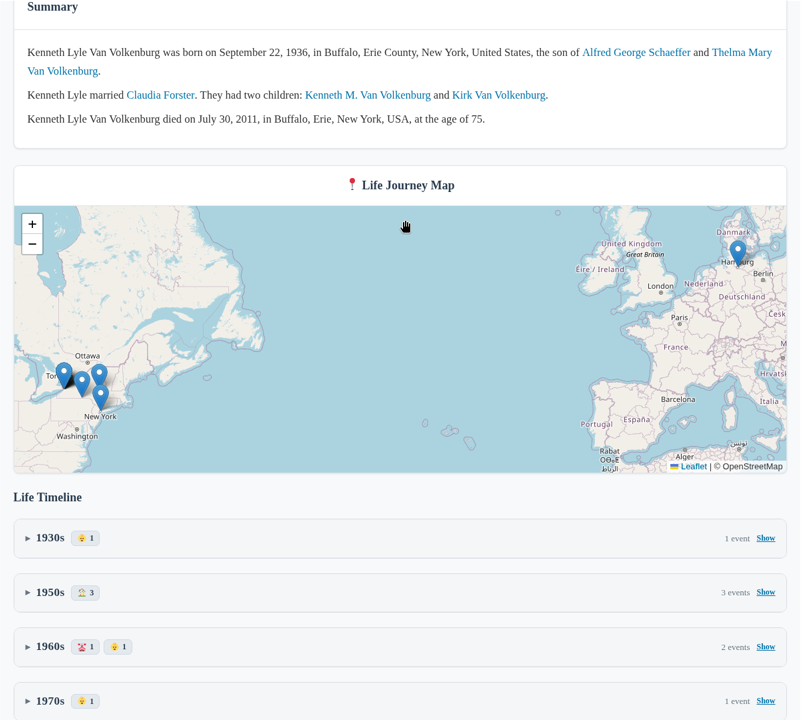
LifePath tells the story of one person’s life in order, from place to place and decade to decade.
- Summary – a few paragraphs about the person’s life.
- Read full biography – a link to the person’s full biography narrative.
- Life Journey Map – the places in the person’s life on a map.
- Life Timeline – events grouped by decade (for example, “1910s – 1 event”). Click Show to expand a decade.
Getting the most from these tools
- Complete family links make fuller charts and reports. Add missing parents or children in your genealogy software and re-import.
- Geocoded places make the Life Journey Map richer. Use ForeBranch → Places → Geocoding to add coordinates.
- Dated events fill out the Life Timeline.
- Biographies add the story behind the dates. See AI Biographies.