Person Pages
Every person in your tree gets their own page, with their life events, family, sources, and, with Pro, photos, charts, reports, a timeline, and more.
Finding a person page
- From the hub, click Surnames, pick a surname, then click a name.
- Use the Search Genealogy page.
- Click any linked name on a family, place, or source page.
- From the admin, click the View on site icon on ForeBranch → Individuals.
Each page has a permanent address that includes the person ID and tree, for example /genealogy/surnames/person/I544/1000/, so it is easy to share.
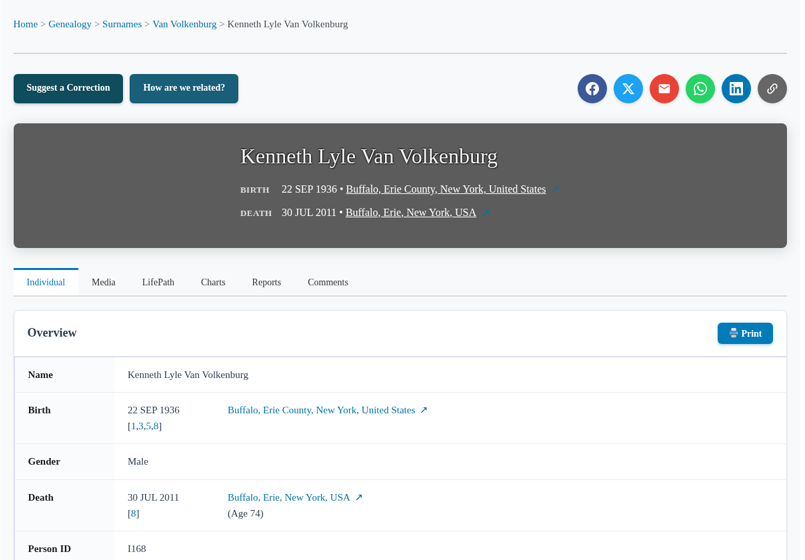
The page header
- A breadcrumb trail: Home > Genealogy > Surnames > Surname > Name.
- The person’s name, with Birth and Death date and place. Click a place name to open its place page; with Pro, the ↗ link opens it in Google Maps.
- Suggest a Correction (Pro) and How are we related? (Pro) buttons.
- Share buttons for Facebook, X, Email, WhatsApp, and LinkedIn, plus Copy Link (Pro).
The tabs
Individual
The main view of the person. Without Pro, the person page is a basic version of this view.
- Overview – name, birth, gender, death (with age), burial, person ID, and last modified date. A Print button prints the page.
- Citation numbers – bracketed numbers such as [1,2,3] link to the source citations at the bottom of the tab.
- Article (Pro) – a link to a WordPress post about the person, showing its category and published date.
- The World in <year> (Pro) – historical events from the person’s birth year, from Wikipedia.
- Parents – family ID, father, mother, marriage, and notes. Click Show N siblings to expand the siblings list.
- Family – spouse, marriage, and children with their dates and places.
- Events – groups such as Education, Residences (with Show N more residences), and Misc Events, listing each event’s date and place.
- Sources – a numbered list of citations with details.
Media (Pro)
A gallery of linked photos and documents, grouped by category such as Photos, Birth Records, Marriage Records, Death Records, Burial Records, Census Records, Military, and Uncategorized. Click a thumbnail to open it in a viewer.
Biography (Pro)
The person’s published biography, either AI-generated or written by you and pasted in. See AI Biographies.
LifePath (Pro)
An interactive look at the person’s life: a Summary, a link to the full biography, a Life Journey Map, and a Life Timeline grouped by decade. See Charts, Reports & LifePath.
Charts (Pro)
Choose a Chart Type (Horizontal, Descendant, Ancestor, or Fan) and the number of Generations (2–6). Zoom with +, 100%, and −, and click any person in the chart to visit them.
Reports (Pro)
Choose a Report Type (Ahnentafel Report, Descendant Report, or Family Group Sheet) and the number of Generations (1–10, default 4), then click Generate Report.
Comments (Pro)
Visitors can read comments, click Reply, or add their own with the Leave a Comment form and Post Comment. Comments from the site owner show an ADMIN badge. Comments are reviewed under ForeBranch → Submissions.
Suggest a Correction (Pro)
- Click Suggest a Correction.
- Fill in Your Name, Your Email, and Information/Correction.
- Optionally attach a document or photo (JPG, PNG, GIF, or PDF, up to 10 MB).
- Click Submit.
The submission arrives in ForeBranch → Submissions for the site owner to review.
How are we related? (Pro)
This button opens a search where visitors pick another person in the tree to see how the two are connected. See Relationship Finder.
Turning features on or off
Under ForeBranch → Dashboard → Configuration you can switch the correction button, Comments tab, relationship finder, share buttons, historical facts, and clickable place names on or off, and hide blank fields.
Living and private people
Visitors see “Private” in place of the name, dates, and places of living or private people. Administrators see their full details with a LIVING label.