Families
The Families screen lists the family units (partners and their children) imported from your GEDCOM.
Open it from ForeBranch → Families. Family structure comes from your GEDCOM: to change partners or children, edit your genealogy software and re-import.
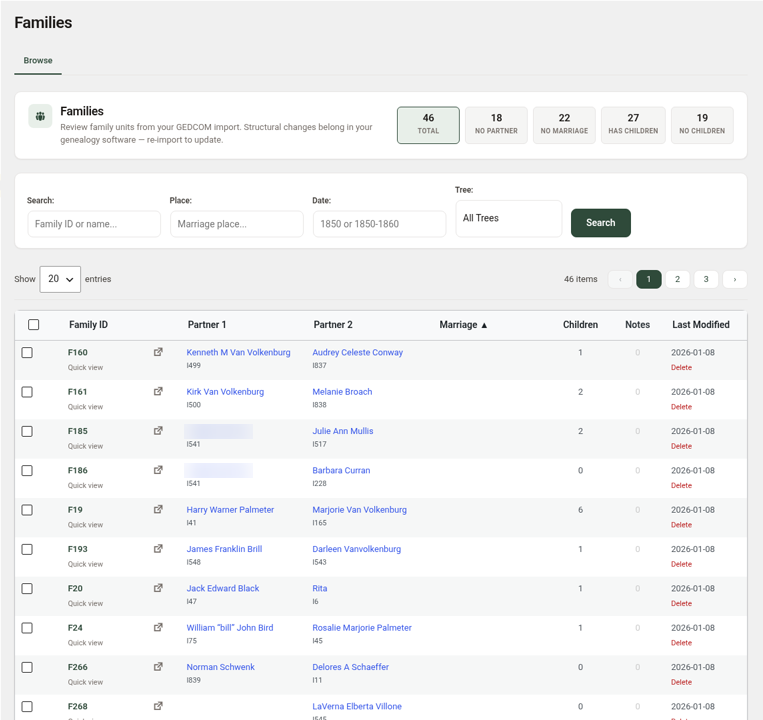
Filter tiles
- Total – all family units.
- No Partner
- No Marriage – families with no marriage recorded.
- Has Children and No Children
Search for a family
- Enter a family ID or name in Search.
- Optionally enter a Place (marriage place) and a Date, either a single year such as 1850 or a range such as 1850-1860.
- Choose a Tree, or leave it on All Trees.
- Click Search.
The list columns
- Family ID – click to open the read-only View screen, or click Quick view beneath it for a pop-up summary.
- View on site icon
- Partner 1 and Partner 2 – each name links to the person, with their ID beneath.
- Marriage – sortable.
- Children, Notes, and Last Modified
Quick view
The Family Details pop-up shows the Family ID, Tree, both partners, marriage date and place, and the number and names of children with their IDs.
View a family
- Click the Family ID.
- Review the Tree, Partner 1 and Partner 2 (each with a View on site link), Marriage (“Not recorded” if blank), and Children.
- Click Back to browse to return.
Delete a family record
Fixing the family in your genealogy software and re-importing is the preferred approach. If you do need to remove a family record from the import:
- Click the red Delete link in the Last Modified column, or Delete family record on the View screen.
- Confirm the prompt.
To delete several families, tick their boxes, choose Delete Selected from Bulk Actions, and click Apply.
Families on the public site
Visitors see families on the /genealogy/families/ page. The number of families shown publicly can differ from the total on this screen. See Surnames, Families, Places & Sources Pages.