Configuration Settings
The Configuration tab controls who can see living people, how your public pages look, and which visitor features are switched on.
Open it from ForeBranch → Dashboard → Configuration. This guide describes the screen with ForeBranch Pro active; items marked (Pro) need the add-on. When you finish, click Save Settings at the bottom of the page.
Summary strip
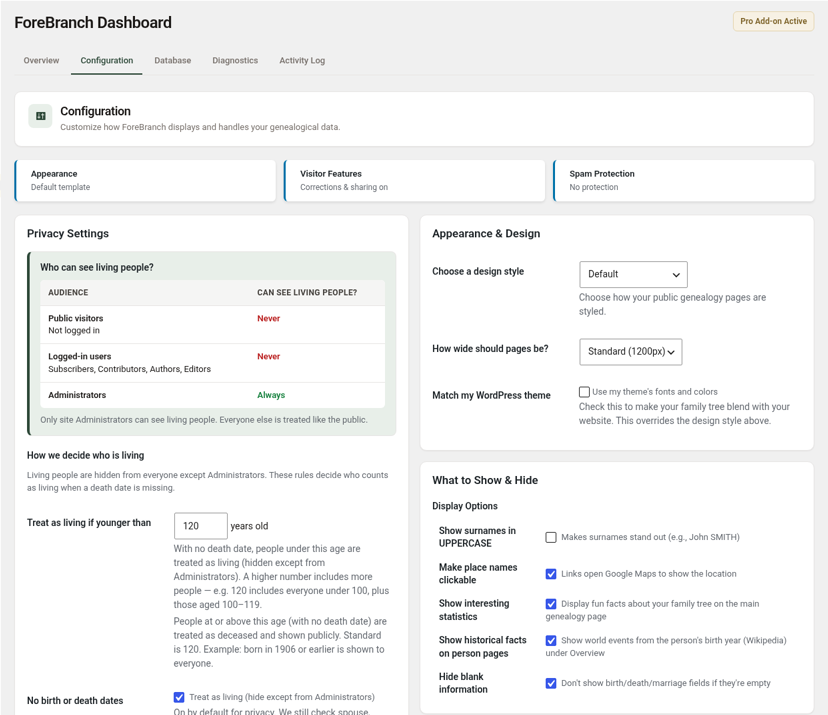
Three status chips at the top give you a quick read of your current setup: Appearance (for example, “Default template”), Visitor Features (for example, “Corrections & sharing on”), and Spam Protection (for example, “No protection”).
Privacy Settings
Who can see living people?
| Audience | Can see living people? |
|---|---|
| Public visitors (not logged in) | Never |
| Logged-in users (Subscribers, Contributors, Authors, Editors) | Never |
| Administrators | Always |
Only site Administrators can see living people. Everyone else is treated like the public. This table is for information and cannot be changed.
How we decide who is living
A person with a death date is treated as deceased. When the death date is missing, these rules apply:
- Treat as living if younger than [120] years old – people with no death date who are under this age are treated as living. People at or above it are treated as deceased and shown publicly. The standard is 120.
- No birth or death dates – Treat as living – on by default for privacy. ForeBranch still checks spouse, children, and parents for clues first; this setting applies only if those are inconclusive.
Advanced: family relationship clues
Expand this section to adjust the clues used when a person has no usable birth year. People under the age threshold above are always treated as living. Leave the defaults unless you know you need different cutoffs.
- If children are older than [80] years – assume the person has passed away.
- If parents died more than [50] years ago – assume the person has also passed away. Also used as the “old death” cutoff for spouses and children.
- If married within the last [80] years – treat the person as living. This takes priority over death clues.
Saving these settings recalculates living status for everyone in your trees so search and person pages stay consistent.
Data Management
Delete all data when plugin is uninstalled – unchecked by default. Leave it unchecked to keep your family tree data if you uninstall the plugin. Check it only if you want all genealogy data removed when the plugin is deleted. This cannot be undone.
Support ForeBranch
Show credit link – optional and off by default. Turn it on to display “Powered by ForeBranch” at the bottom of your genealogy pages.
Comments & Visitor Interaction
Allow Visitors to Help
- Let visitors suggest corrections (Pro) – shows a Suggest a Correction button on person pages so relatives can send corrections or extra information.
- Show Comments tab on person pages (Pro) – lets visitors leave memories and notes. Comments are stored in ForeBranch, not WordPress Comments, and reviewed under ForeBranch → Submissions.
- Show “How are we related?” on person pages (Pro) – adds a button that lets visitors find how someone in the tree is related to the person they are viewing.
Protect Against Spam
Most sites can skip this section. Turn it on if you start receiving spam comments or submissions.
- Basic spam protection – adds a hidden field that only spam bots fill out. It is invisible to real visitors.
- Advanced: Google reCAPTCHA (Optional) – enter a Site Key and Secret Key from Google reCAPTCHA. Choose the reCAPTCHA v2 “I’m not a robot” checkbox type. Both keys are required; leave them empty if you are not using reCAPTCHA.
Appearance & Design
- Choose a design style – Default, Modern, Classic, Vintage Genealogy, Elegant Heritage, Clean & Simple, Academic Research, or Historical Archive. All template styles are included with Pro.
- How wide should pages be? – Theme Width, Narrow (900px), Standard (1200px), Wide (1400px), or Full Width.
- Match my WordPress theme (Pro) – uses your theme’s fonts and colors so your tree blends with your site. This overrides the design style.
What to Show & Hide
- Show surnames in UPPERCASE – for example, John SMITH.
- Make place names clickable (Pro) – place links open Google Maps.
- Show interesting statistics (Pro) – displays fun facts about your tree on the main genealogy page.
- Show historical facts on person pages (Pro) – shows world events from the person’s birth year (from Wikipedia) under Overview.
- Hide blank information – hides birth, death, and marriage fields when they are empty.
AI Biographies (Pro)
- Enable AI biography generation – shows Generate bio on the Individuals screen. Paste bio remains available when this is off.
- Biography AI provider – Google Gemini, OpenAI, Anthropic (Claude), Groq, or Perplexity. Used only for Generate.
- Biography API key – paste your own key for the selected provider. Keys are stored per provider, so switching providers does not wipe other keys. Leave the box blank to keep the existing key.
See AI Biographies for the full walkthrough.
Social Sharing Buttons (Pro)
Let visitors share family tree pages. Use Enable All or choose individually: Facebook, X (Twitter), WhatsApp, LinkedIn, Email, and Copy Link.
Easter Eggs – Fun Surprises! (Pro)
These are just for fun and do not affect your genealogy data:
- Fortune Cookie Sayings – funny genealogy quotes after importing your tree.
- Leap Year Ancestors – a special highlight on February 29 for people born on leap day.
- Import Celebration – confetti when your GEDCOM import finishes.
- Christmas Tree Icon – a Christmas tree icon during the holiday season (Dec 18 – Jan 5).
Save your changes
- Make your changes in any section.
- Click Save Settings at the bottom of the page.
- Visit your public site to see the result.