
How can we help?
Activity Log
The Activity Log keeps a running record of actions performed in ForeBranch, such as saved settings, place merges, and geocoding runs.
Open it from ForeBranch → Dashboard → Activity Log.
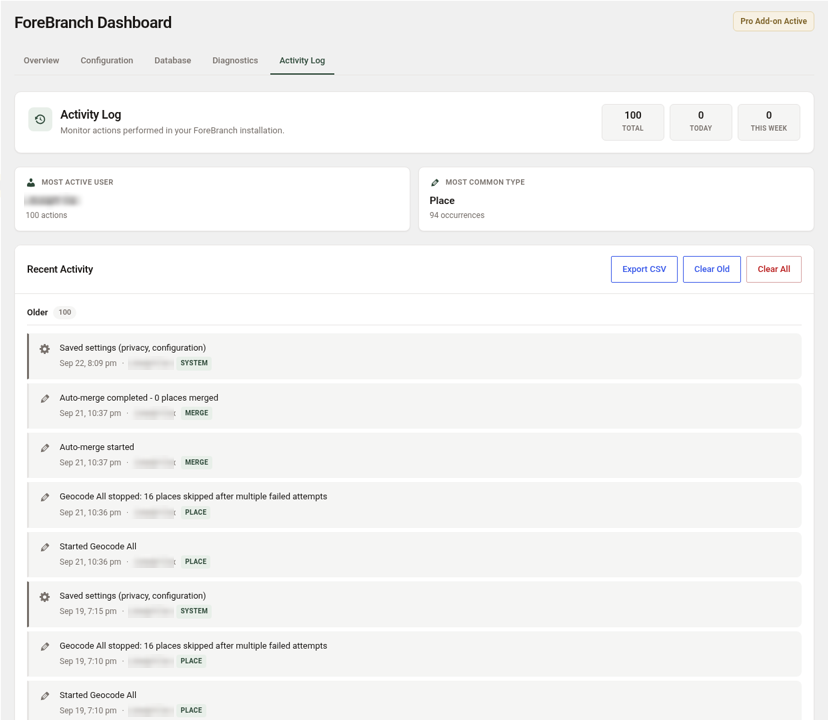
Summary tiles
- Total – the number of logged actions.
- Today and This Week – recent activity.
- Most Active User – who performed the most actions.
- Most Common Type – the most frequent kind of action.
Reading an entry
Each entry in Recent Activity shows a description, the date and time, the user who performed it, and a type badge. Examples:
| Type | Example entries |
|---|---|
| SYSTEM | Saved settings (privacy, configuration) |
| MERGE | Auto-merge started; Auto-merge completed – 0 places merged |
| PLACE | Started Geocode All; Coordinates added for place; Place name corrected; Place rename proposed for review; Auto-merged place |
Click Older to page back through earlier entries.
Export the log
- Go to ForeBranch → Dashboard → Activity Log.
- Click Export CSV to download the log as a spreadsheet file.
Clear the log
- Clear Old – removes older entries.
- Clear All – removes every entry.
Clearing the log removes only the log entries. It does not undo or change any of the actions they describe. Export a CSV first if you want to keep a record.
When the log helps
- Checking what a geocoding run did, such as places skipped after multiple failed attempts.
- Seeing which place names were renamed or merged, so you can make the same fixes in your genealogy software.
- Confirming when settings were last saved.