
How can we help?
Diagnostics
The Diagnostics tab runs tests that tell you whether your server can handle large GEDCOM imports, and helps you check an import afterward.
Open it from ForeBranch → Dashboard → Diagnostics. Run these tests before importing large GEDCOM files, or if you experience import failures or time-outs.
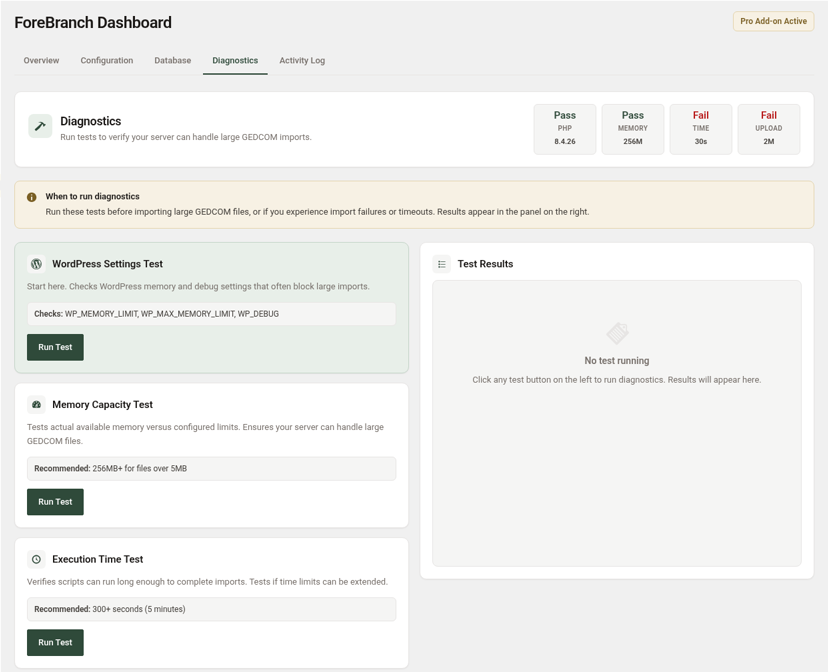
Status tiles
Four tiles show your current server values, each with a Pass or Fail badge:
- PHP – your PHP version.
- MEMORY – the memory limit.
- TIME – the script time limit.
- UPLOAD – the maximum upload size.
If any tile shows Fail, see Server Settings for Large Imports.
Run a test
- Find the test card on the left.
- Click Run Test.
- Read the results in the Test Results panel on the right.
The tests
| Test | What it does | Recommended |
|---|---|---|
| WordPress Settings Test | Start here. Checks WordPress memory and debug settings that often block large imports (WP_MEMORY_LIMIT, WP_MAX_MEMORY_LIMIT, WP_DEBUG). | — |
| Memory Capacity Test | Tests actual available memory against configured limits. | 256 MB+ for files over 5 MB |
| Execution Time Test | Verifies scripts can run long enough to complete imports and whether time limits can be extended. | 300+ seconds (5 minutes) |
| File Upload Test | Checks the maximum file size your server accepts. | 16 MB+ upload limit |
| Import Performance Test | Tests database write speed, memory availability, and PHP settings to find bottlenecks. | — |
| Database Connection Test | Verifies the database stays connected during long operations. Takes up to 30 seconds. | — |
GEDCOM Comparison
After an import, compare a GEDCOM file with what ForeBranch stored to spot missing or extra data. The GEDCOM counts are read directly from the file you select.
- Choose a file from Select GEDCOM file…. The list shows .ged files already uploaded to your site.
- Choose the tree from Select tree….
- Click Compare and review the results on the right.
Tips
- Run the WordPress Settings Test first; it catches the most common blockers.
- After your host changes a setting, reload the Diagnostics tab to confirm the tile now shows Pass.
- Use GEDCOM Comparison whenever counts on your site look different from your genealogy software.