
How can we help?
Upgrading to ForeBranch Pro
ForeBranch Pro is an add-on: you keep the free ForeBranch plugin installed and active, and add Pro alongside it. Your trees and data stay exactly where they are.
Important: do not remove the free plugin
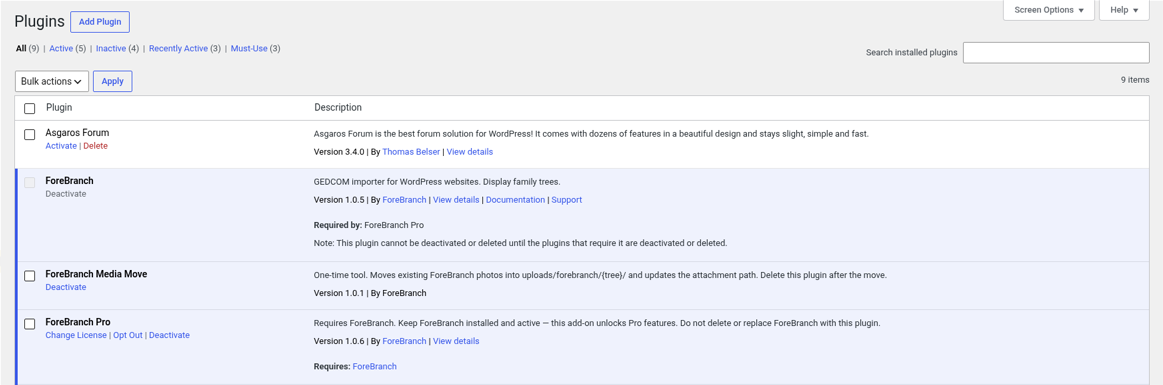
- ForeBranch Pro requires the free ForeBranch plugin to be installed and active on the same site.
- Pro does not replace the free plugin. Do not deactivate or delete ForeBranch when you add Pro.
- Your existing trees, people, places, and settings carry over automatically.
Step 1: Buy a license
- Visit forebranch.com and choose Pro Yearly or Pro Lifetime. Current pricing is shown on the site.
- Complete the secure checkout.
- Your license key is sent to you by email.
Step 2: Back up
- Back up your WordPress database. This is good practice before adding any plugin.
- As an extra safeguard, confirm that Delete all data when plugin is uninstalled is unchecked under ForeBranch → Dashboard → Configuration → Data Management.
Step 3: Install and activate ForeBranch Pro
- Download the ForeBranch Pro .zip file from your purchase.
- In WordPress, go to Plugins → Add New → Upload Plugin.
- Choose the ForeBranch Pro .zip file and click Install Now.
- Click Activate. Leave the free ForeBranch plugin active.
On the Plugins screen you should now see both ForeBranch and ForeBranch Pro listed as active.
Step 4: Activate your license
- Enter the license key from your purchase email when ForeBranch Pro asks for it.
- Go to ForeBranch → Account and confirm the Plan row shows FOREBRANCH PRO.
- If the plan does not update, click Sync License.
Your license is always managed under ForeBranch → Account. See Account & License for details.
Step 5: Confirm Pro is working
- Open ForeBranch → Dashboard. A Pro Add-on Active badge appears beside the page title.
- Open a person page on your site. You should see the Pro tabs, such as Media, LifePath, Charts, and Reports.
- Visit ForeBranch → Dashboard → Configuration to turn on the Pro features you want, such as design styles, social sharing, comments, and AI biographies.

Suggested first steps with Pro
The Dashboard’s Post Import Suggestions section lists them in order:
- Bulk Upload Media – add your photos under ForeBranch → Media → Bulk Upload.
- Autocategorize Media – organize photos with the Auto-Categorize button on Media → Browse.
- Merge Duplicates – clean up places under ForeBranch → Places → Merge.
- Geocode – add coordinates under ForeBranch → Places → Geocoding.
Need help?
Pro customers receive priority email support. You can also browse this Knowledge Base or visit the Support Forum at forebranch.com/forum.