
Submissions (Pro)
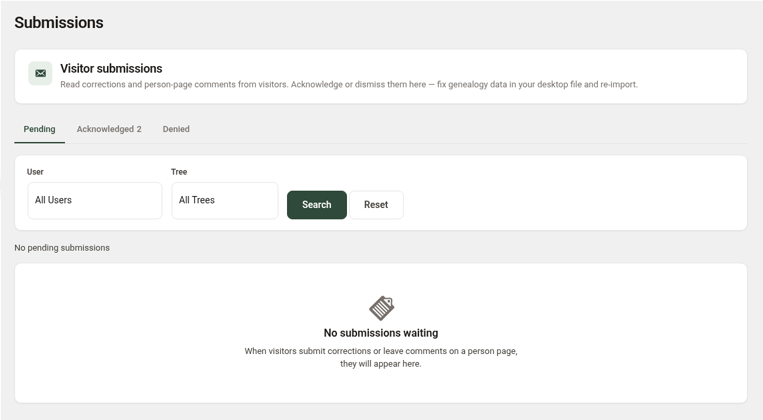
The Submissions screen (Pro) collects the corrections and person-page comments your visitors send in, so you can read and sort them in one place.
Open it from ForeBranch → Submissions. Submissions are for your information: to change genealogy data, update your genealogy software and re-import.
Where submissions come from
- Suggest a Correction – visitors fill in their name, email, a message, and optionally attach a document or photo (JPG, PNG, GIF, or PDF, up to 10 MB).
- Comments tab – memories and notes left on a person page.
Turn these on or off under ForeBranch → Dashboard → Configuration → Comments & Visitor Interaction. Comments are stored in ForeBranch, not in WordPress Comments.
Status tabs
| Tab | What it holds |
|---|---|
| Pending | New submissions waiting for you. |
| Acknowledged | Submissions you have read and acknowledged. |
| Denied | Submissions you dismissed, kept for your records. |
Each tab shows a count badge when it contains submissions.
Filter the list
- Choose a User and/or a Tree.
- Click Search. Click Reset to clear the filters.
Read a submission
- Click the View submission icon in the Actions column.
- Review the person it is about (with a View person link), who sent it and their email, the date, and the message.
- Choose what to do next: Move to Pending, Move to Denied, or Delete. Click Back to list to return.
Columns and row actions
The list shows Actions, ID (the person ID), Name (the person and the submitter), Message, Post Date, and Tree. The action icons let you:
- View submission
- Move to Pending
- Move to Denied
- Delete permanently
Handle several at once
- Tick the submissions you want.
- Choose an option from Bulk Actions. The options depend on which status tab you are on.
- Click Apply.
Acting on a correction
- Read the submission and check the information against your research.
- If it is right, make the change in your genealogy software.
- Export a new GEDCOM and re-import it with Update tree.
- Move the submission out of Pending so your queue stays tidy.
Cutting down on spam
If you receive spam, turn on Basic spam protection or add Google reCAPTCHA keys under Configuration → Comments & Visitor Interaction → Protect Against Spam.