
Places (Pro tools)
The Places screen holds every place name from your GEDCOM. You can tidy names and add coordinates here, and with Pro you can merge duplicates, geocode automatically, and review suggested corrections.
Open it from ForeBranch → Places. It has four tabs: Browse, Merge (Pro), Geocoding (Pro), and Corrections (Pro).
The best-practice order
A banner on every tab reminds you of the recommended order:
- Merge exact or clear duplicate groups.
- Geocode.
- Review Corrections for what is left.
Merging first avoids unnecessary geocoding lookups.
Browse
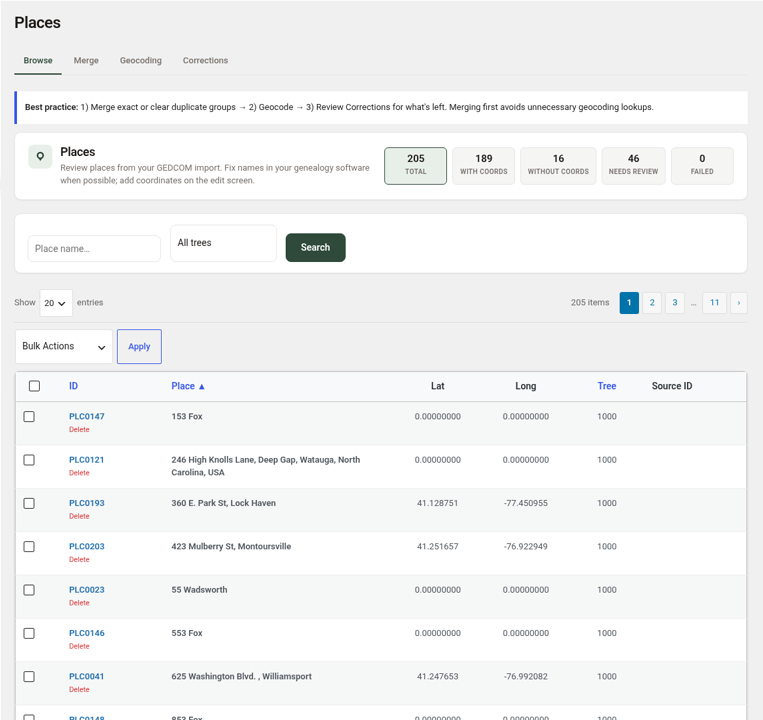
The tiles filter the list: Total, With Coords, Without Coords, Needs Review, and Failed. Use Search places and Filter by tree to narrow it down.
The table shows each place’s ID (click to edit, with a Delete link beneath), Place name, Lat, Long, Tree, and Source ID. Places without coordinates show 0.00000000.
Bulk Actions work on the places you tick:
- Delete Selected
- Clear Coordinates
- Reset & Re-geocode (Pro)
- Approve Review (Pro)
Edit a place
Correcting place names in your genealogy software and re-importing is best when you can. To change what your public place pages show:
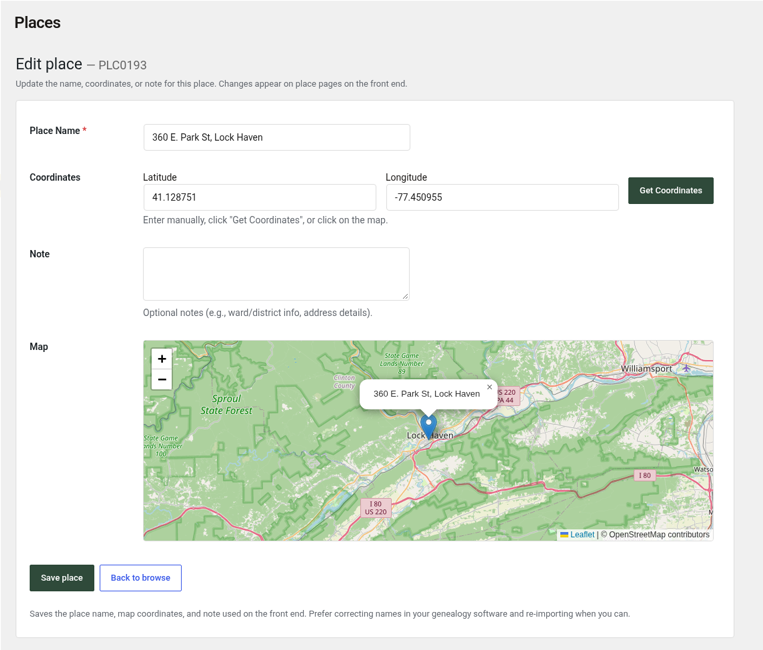
- On Browse, click the place ID (for example, PLC0193).
- Update the Place Name if needed.
- Enter the Latitude and Longitude. With Pro, you can instead click Get Coordinates or click a spot on the Map.
- Add an optional Note, such as ward, district, or address details.
- Click Save place.
Tip: importing with New / replace tree deletes everything in the tree, including place coordinates you added. Use Update tree for routine re-imports.
Merge duplicate places (Pro)
The same place often appears with small differences, such as different capitalization. Merging combines them into one.
Review duplicates first
- Open ForeBranch → Places → Merge.
- Under 1. Find duplicates, choose a Tree and click Find Duplicates.
- Review the groups loaded into Review duplicate places.
Or auto-merge exact matches
Under 2. Or auto-merge exact matches, click Auto-Merge All. This merges places with exactly the same name (ignoring capitalization) without reviewing each one.
Merge settings
Expand Settings to choose the preferences used by Smart Select and merges, then click Save settings:
- Prefer places with GPS coordinates
- Prefer most frequently used places
- Keep coordinates when merging
Undo a merge
The Recent merges list shows what was merged and when. Click Undo beside a merge to reverse it.
Geocoding (Pro)
Geocoding looks up latitude and longitude for your places so they can appear on maps. See Maps & Geocoding for a full walkthrough. In short:
- Geocode All processes 5 places every 10 seconds while you keep the page open.
- Background Mode geocodes 1 place per minute using WordPress cron, with Pause and Stop buttons.
Corrections (Pro)
The last step is to review uncertain geocode matches and suggested renames. High-confidence renames are applied automatically and recorded in the history.
Review queue
- Open ForeBranch → Places → Corrections and choose Review queue.
- Choose a Tree if you have more than one.
- For each place, read the Current name, Suggested name, Reason (for example, “Suggested rename (match 75%)” or “Low match confidence”), and Coords.
- Click Accept to apply a suggested rename, or Approve coords when only coordinates were found.
- Click Reject coords to clear the coordinates so the place can be retried later.
To handle several at once, use Select all or tick rows, then click Accept selected.
Applied history
This view lists every rename applied automatically or accepted by you, with the date, original and corrected names, match percentage, number of events, tree, and note.
- Click Revert (or tick rows and click Revert selected) to undo a rename.
- Click Clear history log to empty the list.
Important: update the same names in your genealogy software so future GEDCOM imports stay in sync.